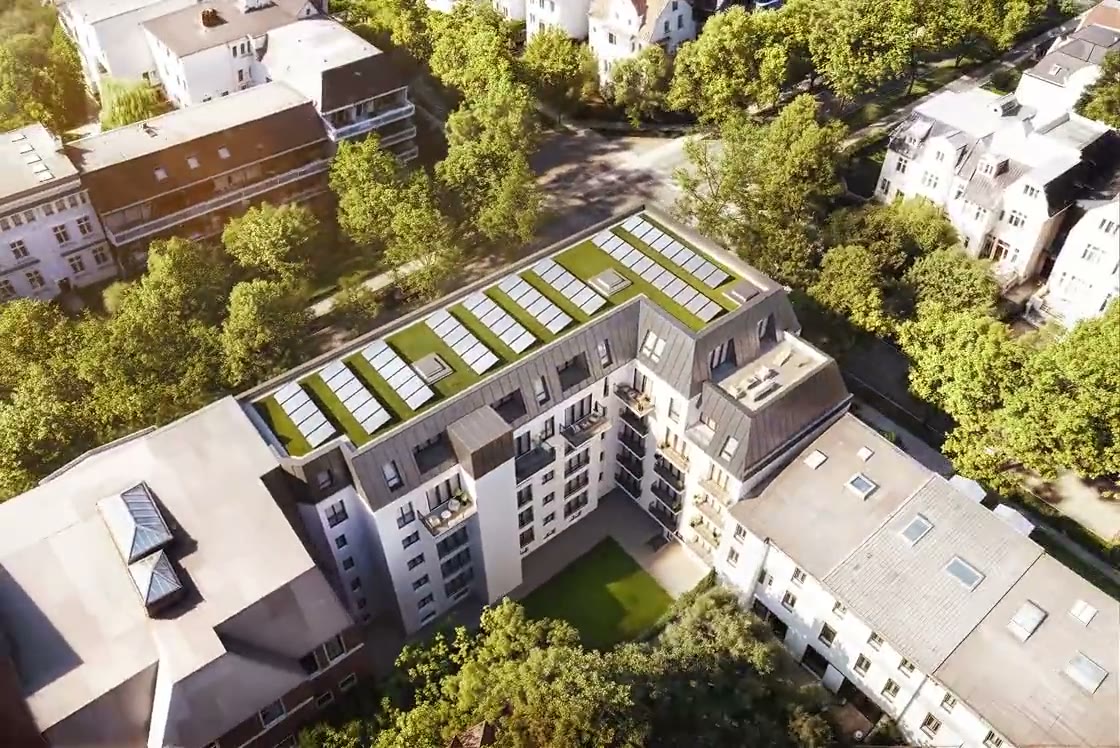
An interactive website for your new‑build development. Buyers pick a unit on your renders and send an inquiry.
On the render, floor by floor or through the filters: every way in leads to the unit's own page, with its floor plan and the inquiry form.
What your buyers see. Pick a unit, open its page, send an inquiry.
Request Information
Every dot is a unit. Point at one for its card, click or tap it to open its page.
Not every buyer starts with the render. Some browse the floors, others filter first.
Floor by floor.
Buyers step through the building one floor at a time. On the floor's plan, the unit under the pointer lights up in its status color with its card beside it, and a click opens its page.
Or straight to the units.
The Units view shows every unit as a card. Filters narrow it by bedrooms, bathrooms, floor, price, area and status, and count the matches before the buyer applies them.
How a project goes live. Six steps, in the order you take them, and what each one needs.
- 01
Import the floor-area PDF
Upload the architect's floor-area PDF. AI drafts the buildings, floors, units, rooms and areas. You check the draft and correct it before the project is created.
You needThe architect's floor-area PDF
- 02
Add the prices
The floor-area PDF contains no prices. Enter them while you review the import, or per unit afterwards. A unit without a price shows “Price on request”.
You needYour price list
- 03
Mark the units on your renders
Upload your renders and floor plans. In the editor you draw the outline of each unit and link it to its unit. These outlines are what buyers point at and click.
You needRenders and floor plans
- 04
Set the theme
Logo, colors, font and status colors are set per project, with a preview of the site next to the settings.
You needLogo and brand colors
- 05
Publish
Preview the site as buyers will see it. Publishing checks the project first and tells you what is missing, then puts it online at an Asono address. You can unpublish at any time.
You needA name for the address, such as lindenhof.asono.app
- 06
Connect your domain, or embed
Optional. Add your domain in the project's settings and create the DNS record Asono shows you. Or paste a snippet into the website you already have.
You needAccess to your domain's DNS, or to your website's code
The import, the editor and the publish button are shown on the homepage.See the setup section
Your own domain is a DNS step.
Add the domain, create the record Asono shows you at your domain provider, then check the verification. The site stays reachable at its Asono address throughout.
Or put it inside the website you have.
One snippet embeds the unit list or the unit grid in any page. It sizes itself to its content, and units open in a popup over your page.
What you bring. Material your architect and your marketing team already have.
- 01
The floor-area PDF
The architect's floor-area calculation, in any language. It is the source for buildings, floors, units, rooms and areas.
- 02
Your renders
The exterior views you already have. The units are drawn on them, so no new visualization is needed.
- 03
Floor plans
A plan per unit or unit type for the unit page, and a plan per floor if you want the Floors view.
- 04
The price list
Prices are entered per unit. A unit is for sale or for rent, and without a price it shows “Price on request”.
- 05
Logo and brand colors
For the theme. The font and the status colors are set there too.
- 06
DNS access, for your own domain
Someone who can add a record at your domain provider. Without your own domain, the site runs at its Asono address.
The plain facts. What the site does, and what it does not do.
Buyers need no account.
Their favorites are kept in their own browser: still there on the next visit from the same device, not on another one.
English and German.
You choose the languages per project. With both switched on, buyers get a language switch.
Sale and rent in one project.
Each unit is one or the other. A rental shows its price with the period, for example “1,450 € / month”.
A status change shows on the next page load.
Reserve or sell a unit in the workspace and the site shows it right away to anyone who opens or reloads a page. A page that is already open does not update itself.
A repeat inquiry joins the same contact.
An inquiry from a unit page arrives in the workspace as a contact, with that unit and the consent the buyer gave, and your team is notified. If the same email address inquires again, it lands on that contact instead of a new one.
Enterprise removes the Asono mark.
On the other plans, a small Asono mark sits in a corner of the site.
No waiting list.
Buyers can still inquire about a reserved unit. A sold unit keeps its page, without the inquiry button. Nobody can queue for a unit.
No browsing history per visitor.
Your team sees which units draw views and inquiries. It does not see which units one particular person looked at.
An interactive website for your new‑build development.
The site goes online at its Asono address first. Your own domain can follow whenever you are ready.